
September 24, 2019 11:25 pm
This is a brief tutorial on how to use Adobe Reader’s ‘Signature’ tool.
Step 1 — Open the PDF you want to sign.
I started with a blank page to make it easier to see.
Step 2 — Click the ‘ink quill’ symbol on the far right side of the toolbar

It looks like this when opened:

Step 3 — Click Add Signature
If it doesn’t automatically appear, click the blue ink quill + ‘sign’ symbol.
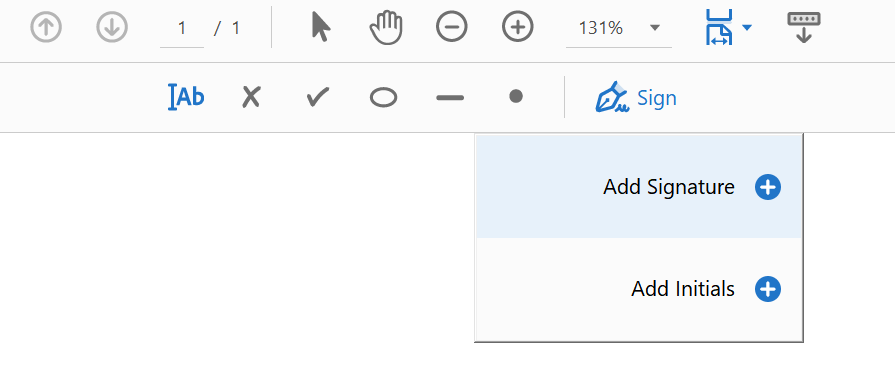
Step 4 — Enter your Signature
You have multiple choices on how to input a signature. You can


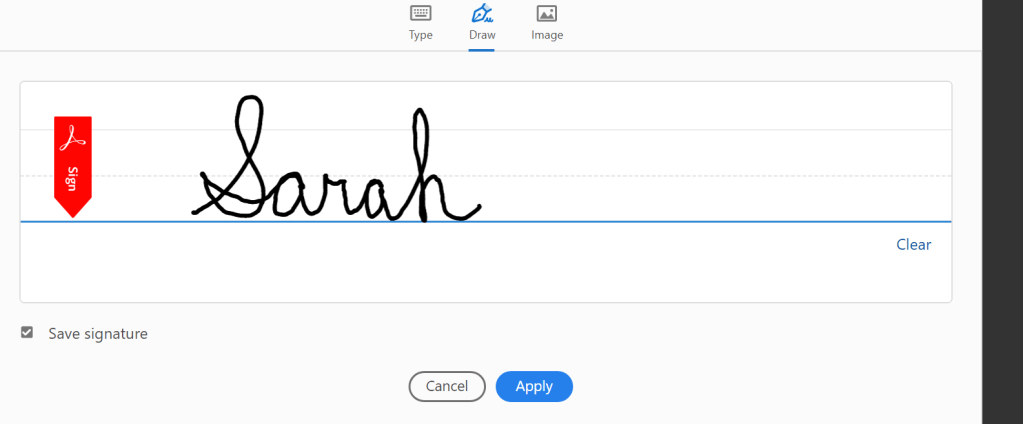
If you don’t like the signature font when typing, click the ‘style’ button and choose a different font.
Step 5 — Click ‘Apply‘ and move the signature wherever you want it on the screen.
If you have a line you need to put it on, just drag it over there using your mouse.
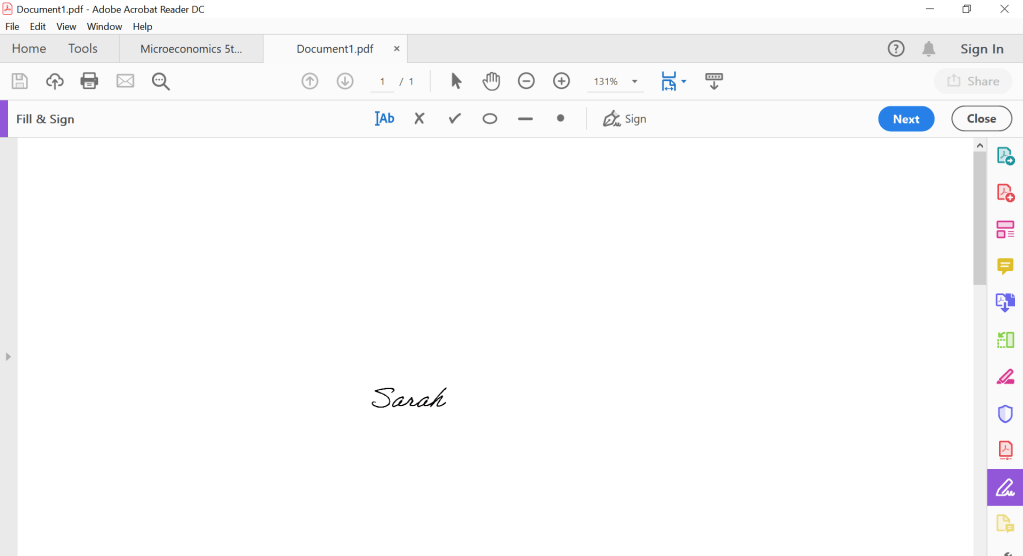
Step 6 — Save as a new PDF
You’re done! Signed and ready to email.
Posted by deceptivelyblonde
Categories: Adobe, Computer Issues
Tags: Adobe Reader, Adobe Signature, computer tips, E-Signature, ESign, how to, How to use adobe signature, Sign, Sign electronically
Mobile Site | Full Site
Get a free blog at WordPress.com Theme: WordPress Mobile Edition by Alex King.