
Deactivating Your Pinterest Account

25 Mar
Account Box

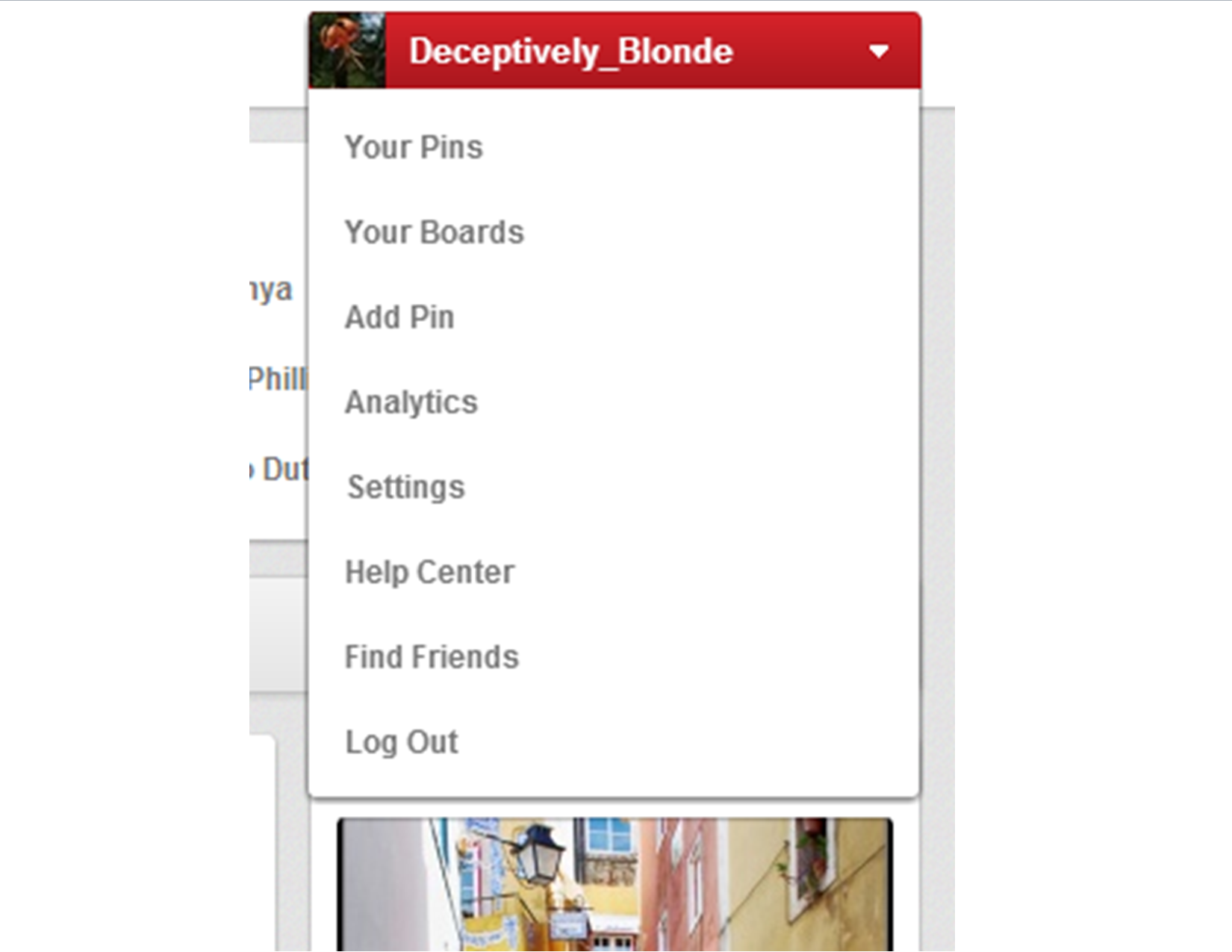
Pinterest Account Drop-down Menu Box

Under the new Pinterest format, it’s really easy to deactivate your Pinterest account.

1. Go to the Your Account’s Home Page.

2. Click the drop-down menu on the top right.

3. Click Settings.

4. At the bottom of the Settings Page, you’ll see the “Deactivate My Account” button.

5. Walk through that process, and you’re done! 🙂

3 Responses to “Deactivating Your Pinterest Account”

  1. pinterest motivational quotes's avatar
    pinterest motivational quotes July 29, 2014 at 3:46 pm #

    I’d like to find out more? I’d want to find out more details.

Trackbacks/Pingbacks

  1. Changes in the New Pinterest: The Basics | Deceptively Blonde - March 25, 2013

    […] Deactivating Your Pinterest Account. […]

  2. Deactiviting Your Facebook Account | Deceptively Blonde - January 16, 2014

    […] been asked to do a follow up on my “Deactivating Your Pinterest Account” post with a How-to Shut Down your Facebook Account Post. Shutting down your account completely is […]

Leave a comment

This site uses Akismet to reduce spam. Learn how your comment data is processed.