Archive | Life RSS feed for this section

How to Install Line (A step-by-step guide)

18 Apr

This is the old website. UPDATED INSTRUCTIONS 2016 ARE AVAILABLE HERE!

Line is a kind of messenger system, like Skype only it’s not based out of the U.S.  It’s kind of a weird cross between Twitter, Tumblr, and Skype really, you’ll find pictures, chat message, phone services, and you can join in on live chats as well. Anyway, a bunch of people have been looking for directions on installation, so here you go!

GETTING “LINE” DOWNLOADED INITIALLY

You can try just searching for “Line” in your smartphone app store.  It usually brings it up as the first or second result.  It’s a green button that says “Line.”  Just remember, you have to set it up on your smartphone/I-Pod before you can put it on your computer.  Line requires it.

Line Official Website

  1. Go to the official Line website at line.naver.jp/en/

Line Download

  • Click theGreen “Download” button.  You will have to set it up on your ipod/iphone/smart phone before you can install it on the computer.  I put it on my Ipod, so I went through the Iphone process.  I’m assuming it is similar for other mobiles.

LIne

  • Click the Green button for your mobile choice.  It will take you to I-Tunes for Apple products and GooglePlay for Android products, ditto for the other app programs.  From now on I’ll approach it from the I-Tunes version.

Line

  • Once it locates “Line by NAVER Japan Corporation,” click the Blue “View in I-Tunes.”

Line

  • Off you go to I-tunes where you download it like any other app and transfer it over onto your I-Pod. I’ll upload a post soon on how to do this if you don’t know how. Open the Program on your Mobile Device.
This is what the app looks like

This is what the app looks like


  1. Now, you will have to enter in an email address and password (Keep these, you’ll need them to install it on your computer).  Then go through the other set up processes, this will include your profile fic, username, terms & conditions, and verification.  The Phone number should  be something you’ll get text messages on since they send you a passcode for human verification purposes.  Enter in the number from the text message when it asks.  Once it is installed, you’re good to go here.
  2. To install it on your computer go back to the official Line website at line.naver.jp/en/
  3. Click the Green “Download” button and pick your computer.  Download the file, enter your email address and password when it asks, and you are set!

BLACKBERRY DIRECTIONS

I haven’t tried this on a Blackberry, but I’ve been told by trusted sources that this is the process (It’s also the advised directions from LINE).

1. Tap More > Add Friends > Official to open the Official Accounts list.

2. Tap the Official Account you wish to add to your Friends list, and tap Add.

These directions can also be found here

How to Find Super Junior’s new Official Line (A step-by-step guide w/Pictures)

17 Apr

Also applies to all other Official Line Accounts 

Super Junior

Other fans of the KPOP band Super Junior have been asking how to locate their Official Line link, since most of the sites tell you it’s up but not how to locate it.  So here you go! Enjoy!

You can also find directions on locating JYJ’s line Here

P.S. Line is a kind of messenger system, like Skype only it’s not based out of the U.S.  It’s kind of a weird cross between Twitter, Tumblr, and Skype really, you’ll find pictures, chat message, phone services,and you can join in on live chats as well. Continue reading

New Tool on Facebook

9 Apr

New Tool on Facebook–The Smiley-Face!

So, I didn’t really notice this before, but apparently there is yet another new addition to the Facebook experience.   If you look at the box where you insert your status updates (i.e. “I’m totally ready for Spring!”–>My post today :P)  you will notice a new smiley-face button.


fb2


If you click that smiley-face, you will see the options pictured below.  There you can choose from a long list of things including “I’m reading such and such” or “I’m feeling wonderful” to your status.  I’ve seen this option on other journal software programs (DeviantArt, Livejournal), but it is new to FB!  What do you think?  


3

How to Type in Pinyin Chinese on Windows 7

6 Apr

你好!

How to Type in Pinyin Chinese on Windows 7


You can enlarge the images by clicking on them

  • Go to your Windows “Start” button on the task bar at the bottom of your screen.

Windows 7

Adulthood Lesson #1: Maintain a Personal Information Worksheet

5 Apr

To a child, every event, every move seems unforgettable.  And Teens can’t imagine every forgetting the name of that annoying boss at the deli who makes them work on Friday’s date night.  But eventually you grow up and life moves on, taking you with it.  

By the time you’ve gone to college, started a family, worked 5+ jobs, and have a home phone, family phone, cell phone, and skype phone, you’ll start realizing that keeping all that old information separate in your brain gets more and more difficult.  

However, eventually you’re probably going to find that  as you start looking for work, taking important tests, filing taxes, getting licenses, etc. that you will often need on hand a lot of that information from your past.  Some forms may ask you for the name and address of every company you’ve ever worked for (i.e. Certification Exams).  Maybe they need a list of all your home addresses for a background check (Law School).  Maybe you need to have on hand your ex-husband’s SSN# for a government form (i.e. if you’re audited).  

It’s a lot easier to keep track of all that information if you do it as you go along.  So for simplicity’s sake: 

Keep a Record Of All Your Important Work/Personal Info

Maintain an Excel or Word spreadsheet that has all of your important work, education, and personal information.  Keep it up to date; as soon as you marry add the date and county where it was registered into the form.  When you get divorced, go stick the date and presiding county name in your worksheet.  When you start a job add the date; when you quit, add that too.  A good list of things you might need to have on hand includes:

  • Your Personal Information
    • SSN#
    • Passport #
    • Home Addresses (for everywhere you’ve ever lived including dorms).
    • Dates of Residence
    • List of Information relating to any legal trouble you’ve had (including arrests, tickets, citations, etc.)
  • Family’s Personal Information
    • Spouse/Ex
      • Full Name
      • SSN#
      • Date of Birth
      • Date Married/Location of Certificate
      • Date Divorced / Location of Decree
    • Children
      • Full Name
      • SSN#
      • Date of Birth
    • Parents
      • Full Name
      • SSN#
      • Date of Birth
  • Educational Information
    • Name & Address of your High School/ Graduation month and year)
    • Name & Address of any Community Colleges or other such schools/ Dates of Attendance / Graduation Month & Year
    • Name & Address of any Undergraduate Colleges You attended / Dates of Attendance / Graduation Month & Year
    • Name & Address of any Graduate Colleges you Attended / Dates of Attendance / Graduation Month & Year
    • List information relating to any academic problems you’ve had (Probation/Expulsion/Discipline)
    • Important Test (ACT/SAT/GRE/GED) Scores / Dates Taken
  • Employment Information
    • Name of Employer
    • Name of Supervisor
    • Job Title
    • Description of Job Position
    • Address of Employer
    • Dates Employed
    • Name / Address / Contact Information for Potential Recommendations
  • Additional Information
    • Clubs, Organizations, etc. That You Are A Member Of / Dates of Membership
    • Honor’s Awarded 

I’ve drawn up a sample of the Word worksheet I use and uploaded it to Dropbox.  You can find it here.  

While it’s a good idea to have this saved in writing or on your computer, remember that it is all confidential information (and likely the answer to many security questions for online accounts) so don’t share it with other people.  Keep it in a very safe place!

Finally, A Toast To Making Life Easier!

How to Type in Korean on Windows 7

2 Apr

안녕하세요!!

How to Type in Korean on Windows 7


You can enlarge the images by clicking on them

  • Go to your Windows “Start” button on the task bar at the bottom of your screen.

Windows 7


Purely Iowa

31 Mar

Purely Iowa

   If you ever visit the state, you’ll find that it is uniquely different from Missouri, Illinois, or the other mid-western states.  Iowa embodies a sort of “rolling seas of grain” concept particularly in the pretty areas.  The hills stretch out as far as the eye can see, covered in farms and fields.  In the spring it all gets green and fresh; in fall, it’s golden and filled with corn and wheat stalks blocking your view (In the summer it all dies and gets kind of boringly brown 😛 ).  But in the winter. . . oh, it’s just gorgeous.  You can see forever and it all looks so open and warm.  Anyway, for a girl who has a particular fondness for Virginian mountains and North Carolina’s ocean vista, Iowa was surprisingly beautiful.  

So, since I’ll be leaving Iowa before too long, I went out looking for some photos that embodied what has become the true Iowa to me.  And I actually got some really good ones 🙂  So here is my Iowa (with a couple fun ones just thrown in)!


This slideshow requires JavaScript.

Facebook Changes

29 Mar

Your Facebook is changing again. . . 

They officially changed mine over today, I’m still deciding if I like it.   There are a couple of new significant changes.

Timeline/Profile Changes

Yours, Mine, and Ours: The Elgin Marbles and the Power of One Word

26 Mar
Parthenon

Parthenon

The Parthenon

The artistry is exquisite; the detailing impressive.  Built from 447 B.C. to 432 B.C. when such a building was truly a monument to the creativity and abilities of the Greeks, the Parthenon’s beauty has survived generations and centuries to remind the world of the power of human ingenuity.  Carefully built upon a solid foundation of limestone and painstakingly elaborated with carvings of Pentelic Marble, the Parthenon has 46 separate columns surrounding the building. Above those columns, dozens of detailed marble plaques were embedded in the roof (1).  It is these plaques that have been the center of so much debate in recent years (1).  You can actually still see in the photo below the places where these embedded marbles used to be. Continue reading

Deactivating Your Pinterest Account

25 Mar
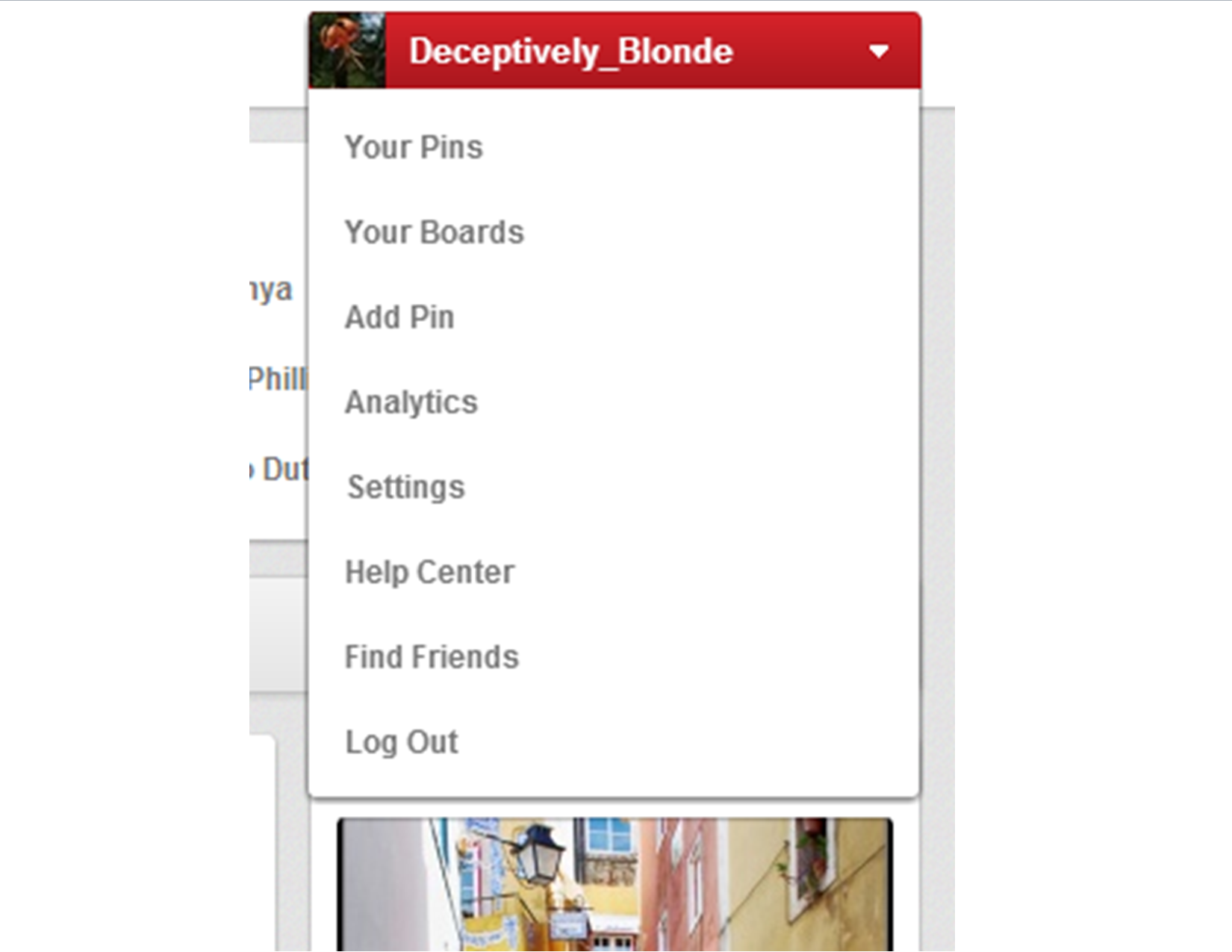
Account Box

Pinterest Account Drop-down Menu Box

Under the new Pinterest format, it’s really easy to deactivate your Pinterest account.

1. Go to the Your Account’s Home Page.

2. Click the drop-down menu on the top right.

3. Click Settings.

4. At the bottom of the Settings Page, you’ll see the “Deactivate My Account” button.

5. Walk through that process, and you’re done! 🙂