Archive | Computer Issues RSS feed for this section

How to Install Line Step-By-Step (Updated 2016)

9 Oct

Line is a kind of messenger system, like Skype only it’s based out of South Korea.  It’s kind of a weird cross between Twitter, Tumblr, and Skype really, you’ll find pictures, chat message, phone services, and you can join in on live chats as well. Anyway, a bunch of people have been looking for directions on installation, so here you go!

GETTING “LINE” DOWNLOADED INITIALLY

You can try just searching for “Line” in your smartphone app store or by visiting their website (https://line.me/en/download). On your smartphone, it’s usually the first or second result and is a green button that says “Line.”  You can now set Line up on just a computer. You do NOT need to have a smartphone account to set it up. 

*Note that the website link has changed from my old posting. Their new address is https://line.me/en/download.

PLEASE NOTE! IF YOU DOWNLOAD LINE ON YOUR COMPUTER, THEN PUTTING IT ON YOUR PHONE WILL DELETE YOUR COMPUTER ACCOUNT AND ALL ITS MESSAGES. THIS IS NOT TRUE THE OTHER WAY. HOWEVER, TO LOG INTO YOUR COMPUTER AFTER YOU PUT IT ON YOUR PHONE, YOU MUST ENTER A VERIFICATION # ON YOUR PHONE. SO BEST TO PICK ONE MACHINE FOR LINE AND THEN STICK WITH IT. DON’T GO BACK AND FORTH!

To Download It on Your Computer:

  1. Visit the website: https://line.me/en/download

line-1

2. Choose your PC system – MAC OS, Windows or Windows 8/10. I don’t use Apple, so I tried it with both the Windows and Windows 8/10 systems.  

Windows opens up a download file. Download it, open it when it’s finished and follow the instructions for installing it. 

line-2

Windows 8/10 opens up the Windows store. You install it through there, and it’ll open up to the “Sign-In” or “Sign-Up” page.

Both systems then go through the same Sign-Up Process:

line-5

3. Add your Phone Number. Hit “Next.” They will call you or text you quickly with a  a four number confirmation code. Put it in the new box and hit “Next.”

4. Now they will ask you to add a Password. Hit “Next.”

5. Give them your email address.  Go on. They will email you with another confirmation code to that email. Go to your email and get the code. Put it in the box on the “Sign-Up” Page.

6. Voila! You should have your Line account started on your computer 🙂 It looks like this now:

line-6

To Download It on Your Phone:

  1. Visit the website: https://line.me/en/download. Or go to your phone’s store and search for “Line.” It should be a green box with a speech bubble and line inside:

This is what the app looks like

line-1

2. Download the app and install it on your phone. 

3. The “Sign-Up” system will be the same as it was with your computer.  

4. Put in your Phone Number. They’ll call you with a confirmation code.

5. Put in a password. 

6. Put in your Email Address. They’ll email you with another confirmation code.

7.  It’s ready to go!!


How to Use Mathematical Equations in your Blogging

27 Apr

1.gif

If you’re like me, you might need the help of mathematical equations in your blogging or professional writing.  But writings and copying an equation from Word into your website simply won’t work.

Research kept taking me to sites that recommended MathJax, LaTeX, MathML, etc. But to be honest, without an idea of how those work it just got all sorts of confusing. Certainly not as simple as I needed.

But I did finally find a website that worked for me! I’ve tested this method and it allowed me to add Mathematical Equations to:

  1. WordPress
  2. Weebly
  3. LinkedIn

I’m sure it works for other sites as well!

  1. Open up your post. 
  2. On another tab, open up the LaTeX Equation Editor (https://www.codecogs.com/latex/eqneditor.php)
  3. Using the Equation Editor, create your Math Equation.  If you don’t immediately see your format, try hovering your mouse over one of the categories to see more equation formats.
    1. For WordPress: Simply copy the image that the Editor produces and paste into your WordPress post!
    2. For LinkedIn or Weeble: Right click on the image and save it as a GIF. Then go to your post, add an image, and upload the picture.
    3. For other websites where steps 1 or 2 don’t work, you can copy the code at the bottom of the page and paste it into your post via HTML coding.

So Easy!


Life in China ~ “Recent ITunes Problems”

24 Apr

“Apple’s iBooks, iTunes Movies mysteriously suspended in China; customers want refunds”

by Julie Makinen via “LA Times”

Apple

Chinese customers of Apple’s iTunes Movies and iBooks services are seeking refunds on their purchases amid reports that the features have been suspended at the behest of government authorities.

Apple has not issued any statement to customers in China about the status of the services, but many users report that they have been unable to connect to the movie service and iBooks since April 15.

A Beijing-based Apple spokeswoman said: “We hope to make books and movies available again to our customers in China as soon as possible,” but she would not elaborate on why the services were unavailable.

The Chinese government has not issued any statement on the matter. However, the New York Times, citing two anonymous sources, said the State Administration of Press, Publication, Radio, Film and Television had ordered the services offline, though it was unclear why.

Apple’s App Store revenue has surged in China in the last year, overtaking Japan as the world’s No. 2 market for the service, according to App Annie.

Apple technical assistance and account service representatives, reached by phone in China, said they had received no official notice from the company that the services had been blocked or shut down. They offered to arrange refunds on purchased content. . . .

READ MORE

Typing Single-Spaced on WordPress

16 Feb

Ever have that frustration where you want to enter something into your WordPress Post single-spaced, but WP keeps changing it to double spaced? Single-Spacing on WordPress is necessary sometimes! For example, entering an address:

Mr. Hades & Co.

000 Styx Street

Halloween Town, End of Nowhere 66666

See what I mean? The default when typing in WordPress is for the computer to add a line every time you hit “Enter.”

Its annoying, especially with things like poetry, literature, quotes, addresses, etc.

So how do you type in Single Space without a space between each line? There are two ways

Easy !

Just hit the “Shift” key when you hit “enter.”

Yep, usually, we just type “Enter” when we want to go down a line. But that will give you an extra space. So instead hit the “enter” button while holding down “Shift.”

Mr Hades and Co.
000 Styx Street
Halloween Town, End of Nowhere 66666


Happy Posting!


How to “Unhide” Hidden Files

11 Feb

Have you ever had that problem where your files magically disappeared? Maybe it was only one of them. Or maybe it was the entire drive or folder.  

Of course, the most likely option is that you have accidentally deleted it. In which case, I recommend you run and check your “Recycle Bin.” If that doesn’t work try using one of the “Recover Deleted Files” programs. I’ll probably try to add a list of reviews for these programs later.

But sometimes what has happened is that you have accidentally Hidden your file. That’s right, you can hide a file from yourself on the computer. Occasionally, you even run into viruses (common here at our University campus computers in the classroom or in emails) that automatically hide your files from you. 

Or perhaps you are one of the people who hide your files intentionally.  There are many situations where you may want to hide you files for security’s sake. For example, as a teacher, I often hide my exams and answer sheets in an effort to limit the opportunity for cheating.  I also often hide important legal documents as a lawyer, just as an extra layer of security. 🙂

There is actually simple test to figure out if your files have been hidden or not.

Folders

  1. Open the folder your files or documents should be in.
  2. On the top of the page you’ll see a few options in the toolbar including Home, Share, View, and Play.
  3. Click View.
  4. You’ll now see four options: Panes, Layout, Current View, and Show/Hide.
  5. In the Show/Hide box, you’ll see three check-boxes. One should say Hidden Files. Make sure it is checked. 
  6. Hidden files will now appear as faded links in the folder!

Hopefully, you’ve at least found the missing files. But how do you stop them from being hidden any longer? There are three options that work for me. 

Step 1

First (if you’re really, really lucky), try this:

Hidden

  1. Select the hidden file.
  2. Look back at the top under the Show/Hide option I mentioned before.  Now look next to the three check-boxes. You’ll see a funny button that says “Hide selected items.” 
  3. Try clicking that button. It should unhide the file. If so, you’ll notice that the file isn’t a faded color anymore and will be a normal file.

If That Didn’t Work . . . 

Second (if you’re really lucky), try this:

Folders 2

  1. Select the hidden file.
  2. Right click and several options should open up. At the bottom, click Properties.
  3. It will open up a page that looks like the image above. Notice the check-box at the bottom that says Hidden. If it is checked, try to UNCHECK it.  
  4. Then hit okay. That will sometimes un-hide the file.

If That Still Didn’t Work . . . 

Finally, (if you weren’t so lucky) try this:

Options

  1. Open the folder where your hidden files are and select the hidden file.  You need to know what “Drive” (C: | D: | E:) or machine the files are on.   
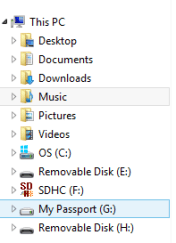
    1. If you aren’t sure, look on the left of your screen. You’ll see a menu that looks like the one in the image above. Notice where it says OS, Removable Disk, SDHC. Those each represent different machines. The OS is your computer. Removable Disk is my flash drives. SDHC is a SD Card I have. They all have the C: | D: | E: letters after them. Find the letter that matches the machine your hidden file is on.
    2. If the file is on your computer, the drive is C:. Usually CD-Roms are D: . SD Cards are often F:. Flash Drives vary. 

CMD

  1. Open up the Command Prompt page on Windows. 
    1. For Windows 10, you can try opening up the Start button and searching for CMD. Just hit enter and it should open right up.
    2. For Windows 7 & 8, try putting your mouse in the upper right corner of your screen. When the usual 5 icons appear, click the magnifying glass to open the search page. Type CMD and hit enter.
  1. The screen that opens up will be black with small white letters as in the above image.  
  2. Type the drive name you gathered before (just he letter and the colon ~ C: | D: | E:) and hit enter.
  3. Copy and paste the following attrib –s –h *.* /S /D and hit Enter.
  4. DONE

If this doesn’t work, I’m not sure how to help. But following these three steps has always worked for me so far! 

GOOD LUCK!

Astrill Problems & an Alternative

19 Jan

Hello!

Just a quick note, the Astrill VPN has been having a lot of problems the last couple of weeks.  Some of the complaints I’ve been hearing:

  • It won’t log in.
  • It won’t connect.
  • It connects, but there is no internet service.
  • It works sporadically – some webpages are not connecting but others are.

While I usually like Astrill, I know that it sometimes comes and goes.  If you are looking for an alternative, here are a couple I can recommend.  

VYPR VPN

VYPR is a pretty strong VPN , it’s been more stable recently than Astrill. I use it quite a bit, and it’s been fine these past few weeks. You can read my review here.  It costs money, but to me being safe on the internet is so worth the price.  It’s nice not to get viruses on your computer when you’re looking in to WeChat from a local cafe or something. 

Psiphon 3

Psiphon is a free VPN which can be helpful in times of emergency.  I never have had much luck with it on my computer, but I do sometimes use it on my phone.  To be honest, the service is sketchy, I’m not confident about the safety, and it doesn’t let me upload things due to slow speed. But if I need a quick check on Google Mail or something, it has pulled me through some rough patches!

There are of course other alternatives, but I haven’t tested them out. So I can’t really recommend them.  


Vypr VPN (Update)

29 Sep

Vypr VPN

A while back, I did a review of VyprVpn and mentioned some problems I was having with it here in Asia.  Since, I seem to have fixed most of my problems, I thought I would post an update on how it’s going!

VYPR

Price: Same

Check out this post for a pricing run-down

Review: If you do decide Vypr is for you, go through this link for an extra 50% off your first month 🙂

Installation: Easy, but Repetitive 

Review: The process for installation is pretty easy.  Initially, you visit http://www.goldenfrog.com to set up an account and download the VPN.  That process is actually really easy.  And I didn’t have any problems with the DNS server when I set it up (unlike with Astrill).

One problem I’ve now run into is that the program keeps stalling (I hit connect and it stalls out, delivering a warning) and I have to re-install it every time I re-start my computer.  I’ve got the installation program downloaded now, so all I have to do is re-open it and run through the steps (takes about 3 minutes).  But it’s still a little annoying.

Also, the last update doesn’t work for me at all. It just shuts down Vypr.

Use: Easy (pretty much)

The recent update didn’t change appearance any, so the use-process is the same.

When I turn on my computer, I open the program from my desktop.  You can set it up to start automatically if you want.  The box will look like this:

Untitled picture

If you want to just connect right away, just click the blue connect button. If you want to change locations, click the exclamation mark looking blue button.  I have found that I never use the “Fastest Server” setting and I am constantly changing servers.  Just a tip, try to run with locations that look like someone no one else would use–the less famous nations on the list.

The little gear in the top right corner is where you can change the protocols.  I found however that the only protocol that works for me is PPTP.  Anything more and it won’t connect.  I also recommend that you set it to “Automatic Reconnect” — Vypr tends to dis-connect and re-connect frequently for me on poor internet servers so I like for it to reconnect without having to repeatedly punch the buttons.

That’s all there is to it! Just click connect and then close the program when you’re done.

Continue reading

I Am Anonymous When I Use a VPN 2015 EDITION: WITH 3 NEW MYTHS

29 Jul

Good Information to Remember! **DB

“I Am Anonymous When I Use a VPN

2015 EDITION: WITH 3 NEW MYTHS”

via “GoldenFrog (host of VyprVPN)

I am Anonymous When I Use a VPN

INTRODUCTION

Disturbing trends in the VPN industry

We have noticed a disturbing trend in the VPN industry. More and more VPN providers are promising an “anonymous” or “no logging” VPN service while providing minimal, or zero, transparency about how they actually handle your data. These so called “anonymous” VPN providers fall into two categories:

  1. They advertise an “anonymous service” on their website but the fine print in their privacy policy suggests they log a significant amount of customer data.
  2. They advertise an “anonymous service” on their website, but their privacy policy simply says “we don’t log” without further explanation or detail.

We aren’t the only ones who question the “anonymous” or “no logging” VPN providers:

[i]f someone tells you ‘you will be completely anonymous, [because] you’ll have VPN running all the time’, that’s a lie.

– SpiderOak, VPN, privacy and anonymity

…you have absolutely no way to know for sure how safe a “No logs” claim really is. Trusting your life to a no logs VPN service it is like gambling with your life in the Russian roulette

– Wipe Your Data, “No logs” EarthVPN user arrested after police finds logs

[a]nyone who runs a large enough IT infrastructure knows that running that infrastructure with ZERO logs is impossible.

– Spotflux, Debunking the Myths of VPN Service Providers

The “anonymous” or “no logging” VPN Providers have diverted privacy-conscious VPN users to focus on the false promise of anonymity instead of focusing on what really matters when choosing a VPN provider: transparency, trust, ease of use, performance and reliability. We hope dispelling some of these common myths will lead to a more transparent and frank discussion about privacy in the VPN industry and on the Internet in general. . . . .

READ MORE

Great Online Travel Tool ~ MyFax

25 Jul

Transcripts suck ~ and requesting them sucks even more.  Naturally the annoying University of Iowa charges $16 a copy–$16! Michigan State University is actually free, and UI is charging $16.  Ridiculous!

Most annoying is the fact that you have to fill out those stupid forms and send them in.  If you are a traveler like me, fax machines can be rather difficult to come by. On the other hand, it’s a little surprising how many times I’ve wished for access to a fax so I could send important, time-sensitive documents back to the states. Like Transcript requests.  :/ 

Consequently, I spent much of the morning wandering around trying to figure out how to send a fax to Universities in America when I came across this little gem–MyFax.com. The process is simple–input your information and theirs, add notes if you need to, upload the file and send.  You do need to go to your computer and verify that you want it sent when the message arrives, but that isn’t too much trouble.  Much faster than trying to send something slow-mail from China!

🙂

Life in China: Apple I-Pad

12 Jun

Apple I-Pad

The Queen is NOT amused.  In fact, I’m pretty down-right Pi**ed (pardon the language).  After all the trouble I’ve had, I thought it pretty necessary to update all future China-Travelers to the dangers of buying/using Apple products here.

I don’t remember if I told you all this, but Lawrence the Laptop has had another revolt. He attempted going on strike via a broken LCD screen; I cut him off at the start via a nice HDMI connection to my television.  Unfortunately, he laughed in my face and promptly refused to work without the HDMI connection. No need to get into it, it was a whole thing.  

So last November, I bought an Ipad 2 during China’s version of Black Friday. I’ve had an I-Pod for several years, which lasted pretty well and I figured I’d give their tablet a try.  YES, I checked and it is a legit Apple I-Pad; had it tested by the real Apple Company in Zhengzhou (it’s on the apple website as a legit seller).

WRONG!  BAD! Stupid Olivia!  

Here’s Why. .

Price: 1800 RMB (approx. $300)

Review: The price was a little expensive for my tastes (almost all of Apple is), but I figured it was worth the bargain.  Apple products in China tend to run a bit pricier than products in America. Go figure given that they are literally produced about 10 miles away in the city I live in.  They have their own personal runway at the international airport they ship so many Apple products out of here. Yet we still get charge at least 50% again as much as American buyers.  So, I had to wait until 11/11, China’s Black Friday shopping day to pick one up from Hong Kong.  

Initial Purchase: Semi-Good; Semi-Problematic

Review: The first shipment I got was not too terrible.   It came with the charger, a cover, a screen protector, and ear plugs, pretty sweet all together.  The I-Pad itself was unmarked and undamaged, it seemed like everything would be okay.

It worked for about 2 hours, and then problems started.  The swiping part of the screen wasn’t working. It would stall up, like the screen was locked. You could go up about half an inch and down about half an inch, but otherwise nothing was happening. Buttons wouldn’t click, etc.  So we tried turning it on and off again (the answer to most issues), which revealed that the lock screen was not working either. Once again, I couldn’t swipe from the screen saver to the unlock screen. When I did finally get to the lock buttons, it froze and wouldn’t click them.  Tried a hard reset and several other options, nothing worked.  

So we called the seller and sent it back.  They kept it for about two weeks and finally sent me a new version.  This one seemed fine, so life moved on.

Use: Final Product

The final I-Pad I got worked fine soft-ware wise.  Sometimes it would randomly shut down songs or the internet would stop working, and none of the VPNs like it at all.  Otherwise, it was great and I was happy.

Hard-ware wise, the screen cracks like crazy. Literally, press to hard on the screen when punching a button and the whole screen cracked.  I put on a super duper safety case on it intended for toddlers, took it off and the whole edges were broken.  I asked the computer fix-it people and they said it sounds like I was sent a re-furbished model that had a cheap screen put on it.  The screen supposedly should not have cracked like that, but they verified the computer was really apple so they think the screen was just replaced with a cheapo version.  

I was not happy, especially knowing it takes 300 RMB to fix the screen. Furthermore, they admitted that if the top screen breaks the second lower screen there may be no fixing it at all?!?  0_0 Don’t you think that’s something they should have told me about before I bought the I-Pad?  I did a ton of research into I-Pads, I asked questions, and this never came up.  

ERROR: Blue Screen of Death

Anyways, along I go using  my ipad for about 5 months, when suddenly the screen goes blue and the whole thing just shuts off.  Black. Off, no charging, no connecting to the computer, no nothing.  Reset doesn’t work. Plugging it in to the computer doesn’t work. It is dead as a doornail for no apparent good reason.  No warning, that would be too nice. Just stops in the middle of a show.  Takes with it my calendar, contacts, messages, photos, videos, notes, everything. So off I go to the computer store to have it fixed.
Continue reading