Archive | Computer Issues RSS feed for this section

SD Memory Card Locked

12 Nov

I’ve run into this problem several times with photographers (particularly amateur with the little cameras), although I’m sure other people have had the same problem.  You plug in your SD Memory Card and it says something like “Memory Card Locked” or “Memory Card Unavailable.”  Don’t freak–your card isn’t necessarily unrecoverable!

If you look at the picture of the card above, note the notch on the left side. If you look carefully, you’ll see a part that’s a light grey.  You can see it more clearly in this picture.

What you may not know is that this is a little button–it slides up and down. And it is what locks up a memory card.  Basically it’s a key that protects your information from being hurt, so it locks the information down. You cannot access it, and you cannot change it.  Unfortunately, this is going to bring up error messages when you plug the card in. This is especially an issue for photographers who frequently pull the cards in and out of the camera. A lot of times, you’ll accidentally trigger this little button without realizing 

All You Have To Do Is Re-Click The Button.  

That’s it. Real Simple, no hassle, no computer-wizards necessary.  🙂

Jaejoong’s On Line Right Now!

7 Nov


Yes, my favorite artist is on Naver Line chatting in English & Spanish right now! Come and join us!  Find out how to get to his Line account here.

How to Install Line (A step-by-step guide)

18 Apr

This is the old website. UPDATED INSTRUCTIONS 2016 ARE AVAILABLE HERE!

Line is a kind of messenger system, like Skype only it’s not based out of the U.S.  It’s kind of a weird cross between Twitter, Tumblr, and Skype really, you’ll find pictures, chat message, phone services, and you can join in on live chats as well. Anyway, a bunch of people have been looking for directions on installation, so here you go!

GETTING “LINE” DOWNLOADED INITIALLY

You can try just searching for “Line” in your smartphone app store.  It usually brings it up as the first or second result.  It’s a green button that says “Line.”  Just remember, you have to set it up on your smartphone/I-Pod before you can put it on your computer.  Line requires it.

Line Official Website

  1. Go to the official Line website at line.naver.jp/en/

Line Download

  • Click theGreen “Download” button.  You will have to set it up on your ipod/iphone/smart phone before you can install it on the computer.  I put it on my Ipod, so I went through the Iphone process.  I’m assuming it is similar for other mobiles.

LIne

  • Click the Green button for your mobile choice.  It will take you to I-Tunes for Apple products and GooglePlay for Android products, ditto for the other app programs.  From now on I’ll approach it from the I-Tunes version.

Line

  • Once it locates “Line by NAVER Japan Corporation,” click the Blue “View in I-Tunes.”

Line

  • Off you go to I-tunes where you download it like any other app and transfer it over onto your I-Pod. I’ll upload a post soon on how to do this if you don’t know how. Open the Program on your Mobile Device.
This is what the app looks like

This is what the app looks like


  1. Now, you will have to enter in an email address and password (Keep these, you’ll need them to install it on your computer).  Then go through the other set up processes, this will include your profile fic, username, terms & conditions, and verification.  The Phone number should  be something you’ll get text messages on since they send you a passcode for human verification purposes.  Enter in the number from the text message when it asks.  Once it is installed, you’re good to go here.
  2. To install it on your computer go back to the official Line website at line.naver.jp/en/
  3. Click the Green “Download” button and pick your computer.  Download the file, enter your email address and password when it asks, and you are set!

BLACKBERRY DIRECTIONS

I haven’t tried this on a Blackberry, but I’ve been told by trusted sources that this is the process (It’s also the advised directions from LINE).

1. Tap More > Add Friends > Official to open the Official Accounts list.

2. Tap the Official Account you wish to add to your Friends list, and tap Add.

These directions can also be found here

New Tool on Facebook

9 Apr

New Tool on Facebook–The Smiley-Face!

So, I didn’t really notice this before, but apparently there is yet another new addition to the Facebook experience.   If you look at the box where you insert your status updates (i.e. “I’m totally ready for Spring!”–>My post today :P)  you will notice a new smiley-face button.


fb2


If you click that smiley-face, you will see the options pictured below.  There you can choose from a long list of things including “I’m reading such and such” or “I’m feeling wonderful” to your status.  I’ve seen this option on other journal software programs (DeviantArt, Livejournal), but it is new to FB!  What do you think?  


3

How to Type in Pinyin Chinese on Windows 7

6 Apr

你好!

How to Type in Pinyin Chinese on Windows 7


You can enlarge the images by clicking on them

  • Go to your Windows “Start” button on the task bar at the bottom of your screen.

Windows 7

How to Type in Korean on Windows 7

2 Apr

안녕하세요!!

How to Type in Korean on Windows 7


You can enlarge the images by clicking on them

  • Go to your Windows “Start” button on the task bar at the bottom of your screen.

Windows 7


Facebook Changes

29 Mar

Your Facebook is changing again. . . 

They officially changed mine over today, I’m still deciding if I like it.   There are a couple of new significant changes.

Timeline/Profile Changes

Deactivating Your Pinterest Account

25 Mar
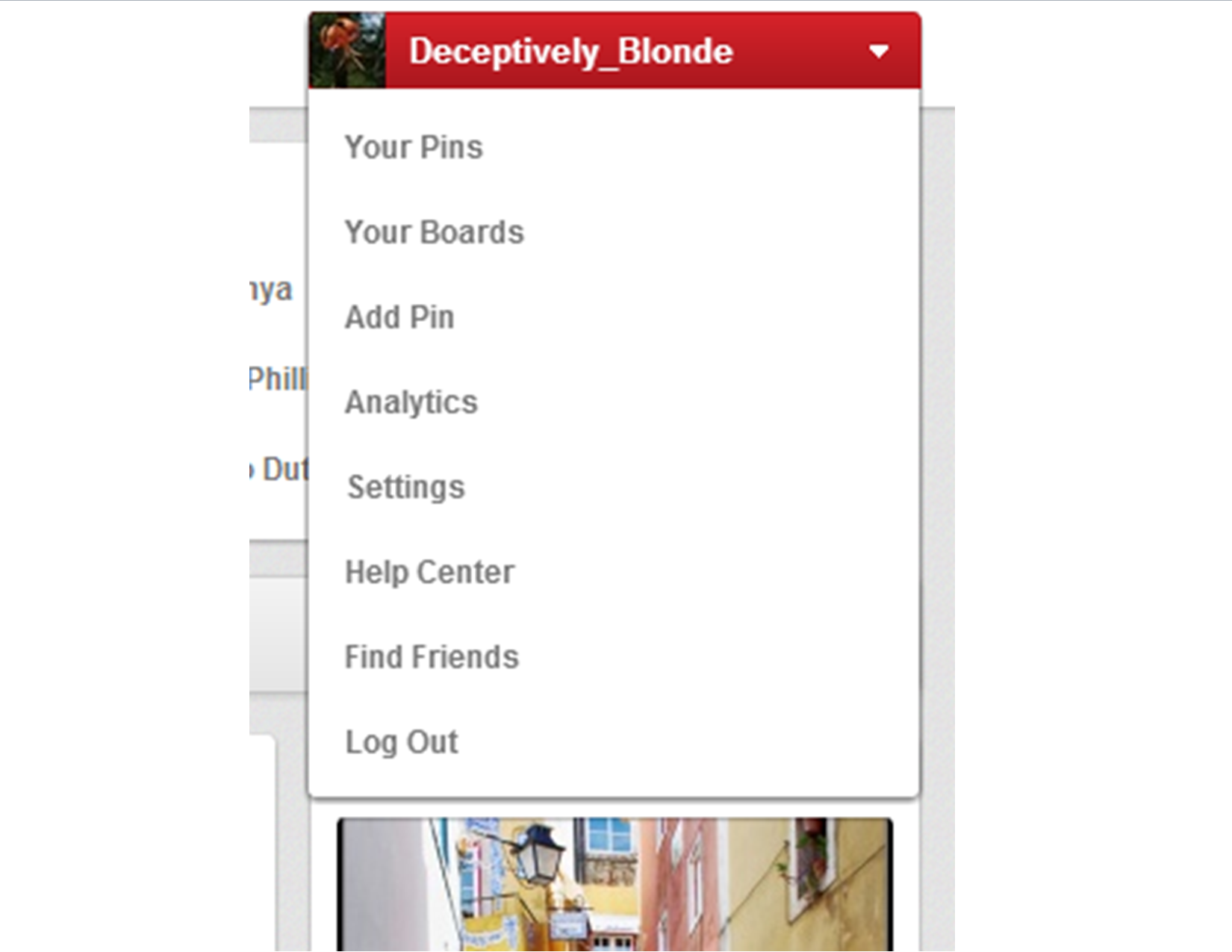
Account Box

Pinterest Account Drop-down Menu Box

Under the new Pinterest format, it’s really easy to deactivate your Pinterest account.

1. Go to the Your Account’s Home Page.

2. Click the drop-down menu on the top right.

3. Click Settings.

4. At the bottom of the Settings Page, you’ll see the “Deactivate My Account” button.

5. Walk through that process, and you’re done! 🙂

Changes to the Pins on the New Pinterest

24 Mar

You can find Changes to the Pinterest Account Tools Here.

This post will run through a few of the new changes established to the Pins themselves.  I actually think this part is a lot more convenient than Pinterest’s old pin format.  The new ones allow you to go straight to the website, see other pins from that site, etc.

The Pin Itself

Pin

A picture of how the Pins now look

The pin itself doesn’t actually look all that different.  It still has the image, and if you click the image it will take you to the linked URL.  Nonetheless, there are a couple changes to note.

1. The greatest change to the pin itself is that you can no longer open it up and edit your own pins here.  The edit button no longer appears unless you are on the Boards or Pins main page on your account. Continue reading

Changes in the New Pinterest: The Basics

24 Mar

Pinterest is currently changing over to a new interface, and, while there aren’t any too serious changes, some things are slightly different.  I’ve been playing around with the new format and thought I’d run over some of the changes here.  So here are a few notations on the changes to your account home page and directions on adding or altering boards and pins.

The New Account Home Page

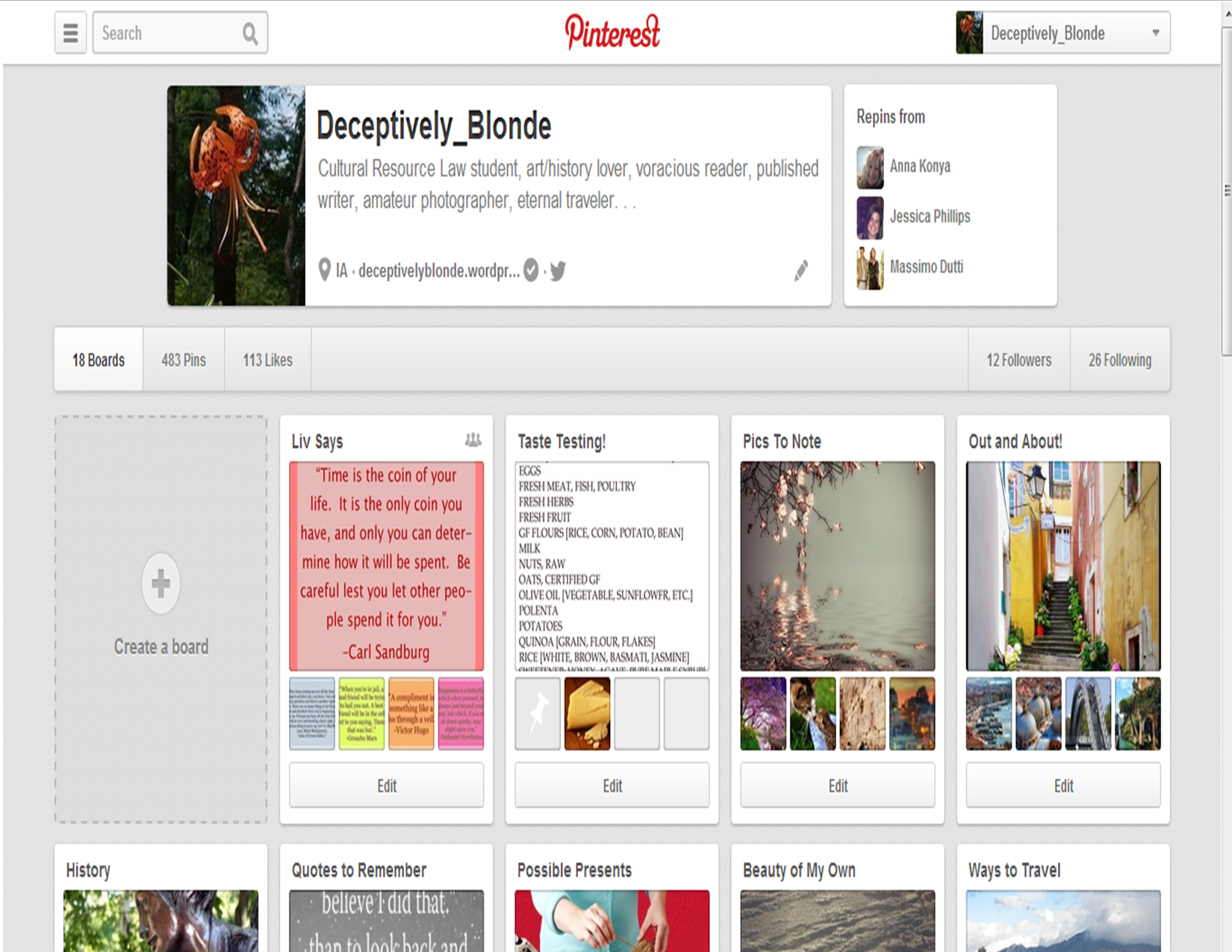
Pinterest

Pinterest Account Home Page = new format

If you look carefully, you will note that all the buttons on the top menu are now combined into one new drop-down menu in the upper right-hand corner. Continue reading