Life of an Foreign #Teacher ~ Computer Catastrophes
4 MayThe #Tech Life ~ #VPN Pros and Cons
26 Apr
As always, I’m actually a supporter of people using VPNs to protect themselves when on the internet. Although a VPN is never completely anonymous, it does go a long way towards protecting your identity and computer from people who want to hack and steal your data. For those of you interested in how a VPN can help you or hurt you, I thought I’d compile a list of benefits and problems I’ve run into with my 3 years of VPN experience 🙂
Continue readingInstalling #WordPress Site on #HostGator
21 AprHow to Install and Start Editing your WordPress Site on Hostgator!!
STEP #1 – Sign Into your CONTROL PANEL. If you aren’t sure how, look here.

See the button in the picture above that says “WordPress – 1 Click Installation?” Click it 🙂

Click the down arrow and choose the domain name (URL: http://www.deceptivelyblonde.com) that you have created on HostGator and was to set up as a WordPress Site. Click “Next”

Fill in your Name and information for the WordPress Site. Be careful – if the email address you use already has a WordPress Site attached to it, they’ll want to add this site to your old WordPress account. If you don’t want to do that, you’ll have to create a new WordPress account.
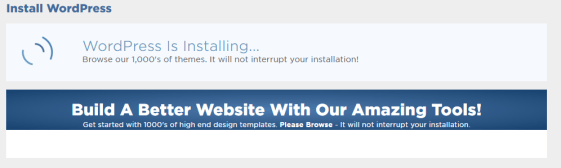
You’re installing! Wait, Wait, Wait!

Awesome! Your Installation is Complete. Pay attention to the “Installed to:” “Username” and “Password” — You’ll need these next.
Take that “Installed To:” URL and put it in your URL field at the top of your browser. It should be the url you chose for your website. Basically, just go visit your new site. It’ll show the image below:
For example: “https://www.deceptivelyblonde.com”

This is the page that everyone else is going to see until you finally publish your completed site. But for now, just click “Admin Login.” In the picture below, enter the username and password that they gave you before.
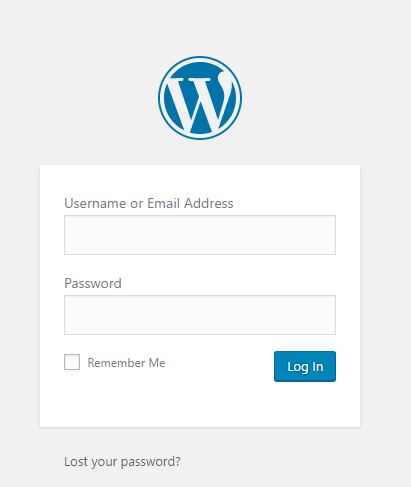
Viola! You’ll be on the familiar “WordPress” dashboard instead of the Hostgator dashboard. Now you can go through the steps and start setting up your website. (I’ll post another instruction set for that later. 🙂

Chicken-Salad Stuffed Tomatoes and Peppers
13 AprINGREDIENTS:
- 1 Medium Green Pepper
- 1 small Carton of Cherry Tomatoes (about 15-20)
- Approximately 10 oz of Canned Chicken Breast.
- 2 Sticks of Celery
- 4-5 TBSP of Mayonnaise (to Personal taste)
- 3-4 Pieces of Bacon
- 2 oz of Colby Cheese
- 1 TSP of Liquid Smoke
- 1 TSP of Dijon Mustard
- 1 Egg
- 1/8 TSP Ground Pepper
DIRECTIONS
- Remember that everything has to fit inside a small Cherry Tomato, so everything needs to be finely cut.
- Cook the Bacon. (I use a strong microwave, put them in for about 4-5 minutes.). Put the bacon in the fridge to get cold.
- Hard Boil the Egg. Take off and cool in cold water. Put in fridge to get cold.
- Take out the Chicken Breast and cut until very finely sliced/shredded. Put in a Small Bowl.
- Very finely slice the Celery (about 1/8 – 1/4 of an inch for each piece.) You should have about 1/3 Cups total. Add to Bowl
- Add the Mayonnaise. If you want it more liquidy, add more Mayonnaise. Less will set up better though. You can always add more at the end if you desire.
- Shred the Cheese and add it to the Bowl. Add Mustard, Liquid Smoke, and Ground Pepper. Finely slice the eggs, both whites and yolk. Add. Crumble the bacon. Add.
- Mix together. Put in the Refrigerator for 1+ hour to allow flavor to spread out.
- Cut the Green Pepper into large Bite Sized pieces. Using a paring knife and spoon, carefully scoop the insides out of the Tomatoes. Add the Chicken Salad to the Green Peppers and Tomatoes.
- SERVE AND ENJOY!
#Hostgator – Changing Your Control Panel Password
11 Apr
To change the password, sign into your Control Panel. On the top right, you’ll see your username. Click it.
The drop-down will say “Password & Security”
Now just enter your old password and your new one. 🙂