Archive | Computer Issues RSS feed for this section

Erasing “Conduit”

30 Apr

If you have ever been hit by the Conduit attack, you know what I’m talking about. It sneaks in with random programs, usually without permission or anyone telling you it came with.  Magical Jellybean Keyfinder is one such program.  It’s a search engine/home page that takes over every browser or page you use.  In fact, I keep feeling like it is somehow a virus. Very suspicious. But also Very Hard to Get Rid Of.  

Here’s how you erase Conduit:
Continue reading

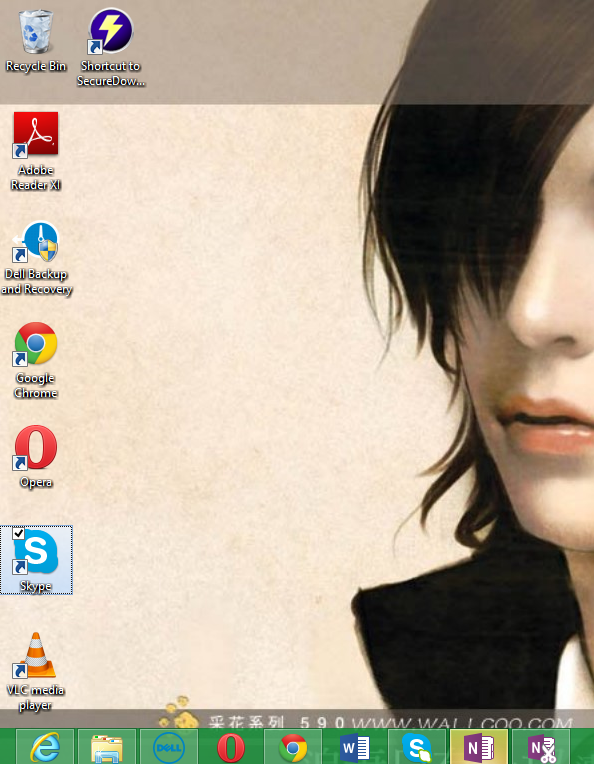
How to Add Skype to Windows Desktop

29 Apr

I’m posting this mainly because I keep having to erase my computer and re-install Windows (5 times in the past 3 months). Every time that happens, it needs to re-upload all of my programs. This includes Skype; that much beloved face->phone service of travelers around the world.  

Unfortunately, I really  don’t like using the “Windows 8 Store” version.  With the stupid Windows 8 page I have to go hunting Skype down, when I would just as soon have it pinned to my taskbar on the bottom.  Plus, my computer doesn’t like telling me when someone calls me via Skype with that program.

So, I still install the version of Skype meant for your Windows Desktop:) Then I pin it to the taskbar on the bottom of my screen.

If you are interested, just go to the following url: http://www.skype.com/en/download-skype/skype-for-windows/

Start

Problem #1 in “The Blonde Life”

27 Apr

Problem #1 in “The Blonde Life” ~ Especially for women:

The fact that Computer technicians immediately ignore everything you could possibly tell them.  

Continue reading

Cool Link: Kuler by Adobe

5 Apr

Confession: I am addicted to changing colors, styles, themes, and fonts on stuff.  Powerpoints are my favorite things ever, purely because it promotes playing with the appearance of your product.  

For fellow amateur designers, I wanted to tell you about the amazing thing that is Adobe’s site ‘Kuler.”  The professionals already know about it, because it is pretty much the best-thing-since-sliced-bread invention of web designing.  

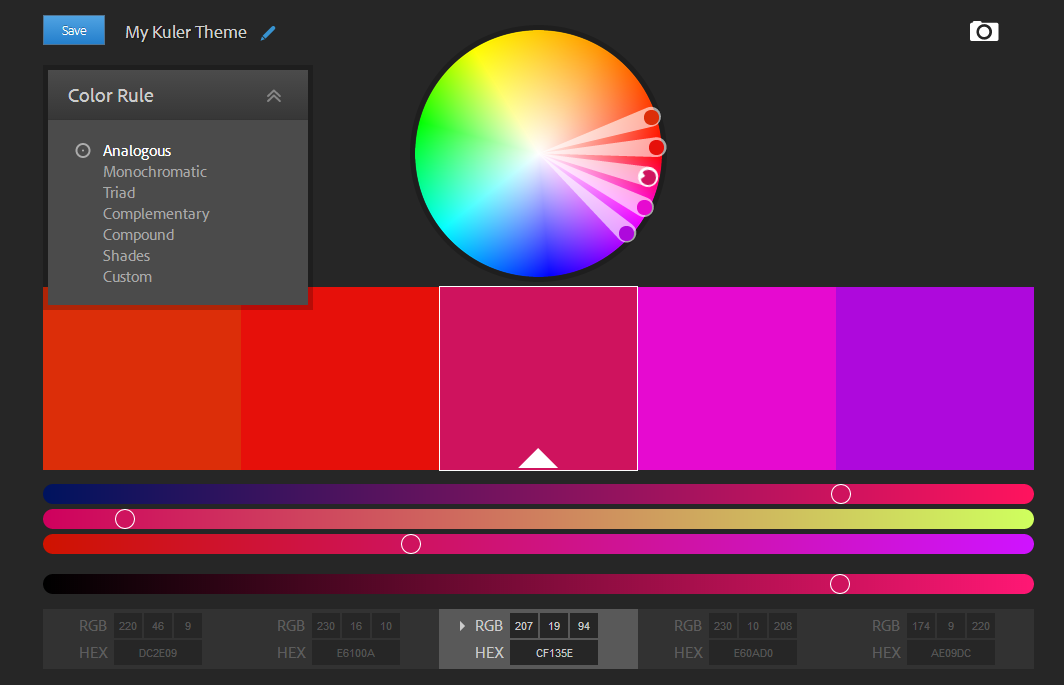
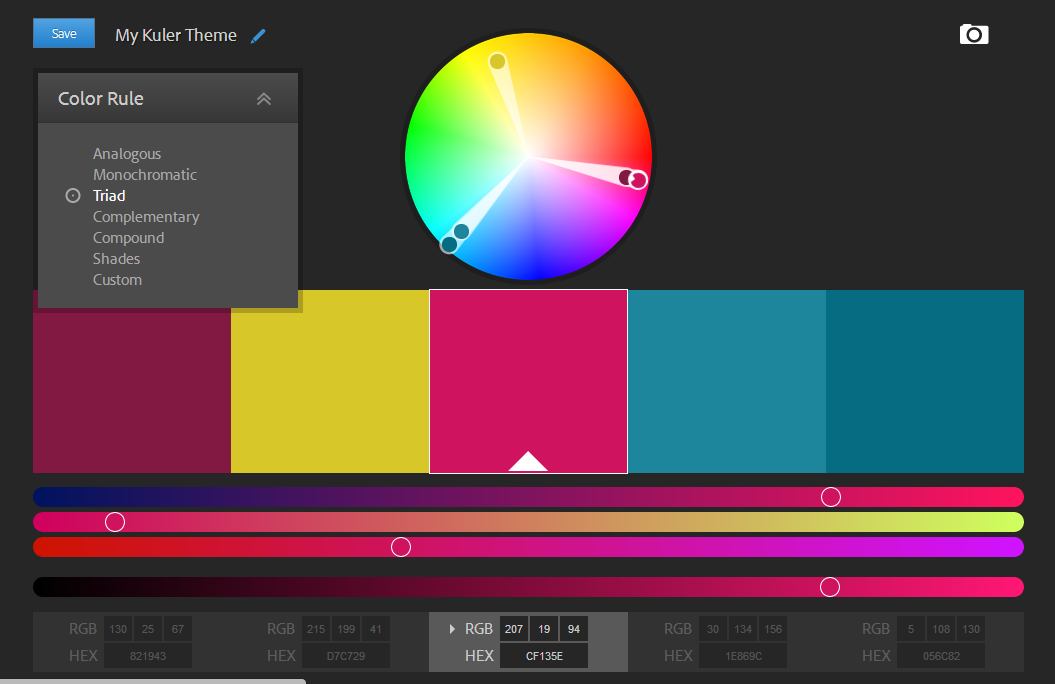
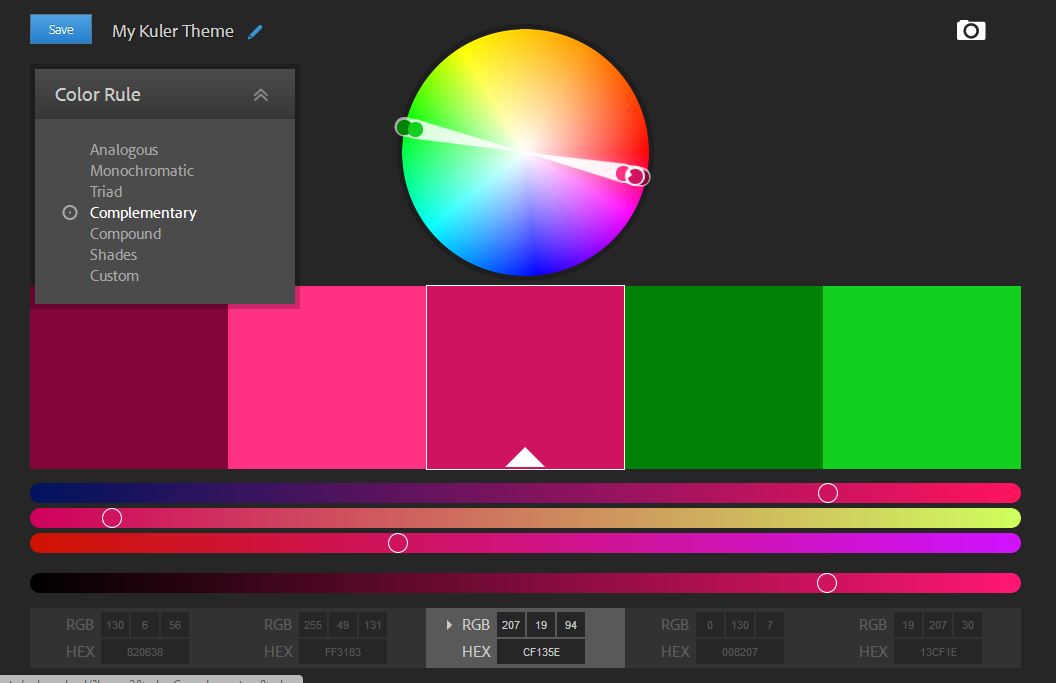
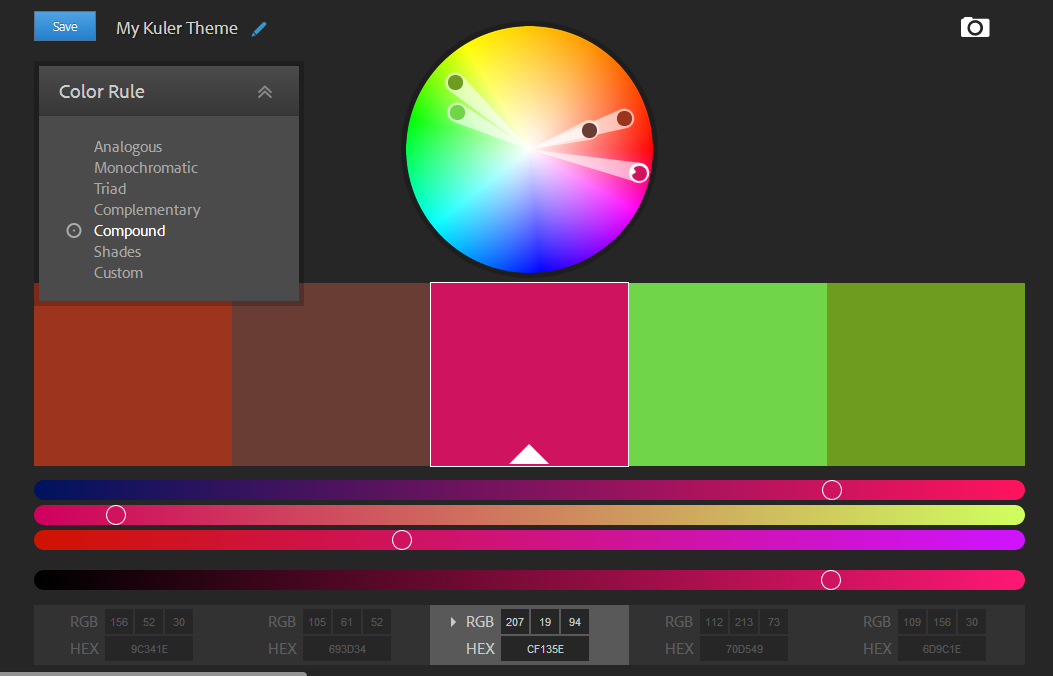
The way it works is you pick a base color you particularly are interested in, and it gives you at least four other colors that it would go with.  For example, you can chose from “monochrome” and it gives you varieties of the same shade.  Ask for “complementary,” it pulls from opposite sides of the color wheel to make your swatch.   Here is an example from the “pink” I had chosen as my base (“cf135e”)

Analogous

Analogous

Monochrome

Monochrome

Triad

Triad

Complementary

Complementary

Compound

Compound

Shades

Shades

There are even a ton of sample swatches for you to start with or choose from!

General

You don’t even have to know your base color at the beginning; just drag the circles around the color wheel until you find a color. The nice part about this is that it gives you both the HEX code (#000000) and the RGB code.  I’m just upset that WordPress.com doesn’t let you use the codes anymore, instead you are limited to the first color samples.  But, it still works with Tumblr! 🙂


How to Overlap Sound Recordings on Windows Movie Maker

11 Mar

Learned this process yesterday when making my educational Youtube video:

I created this video by making a recording of my voice, adding pictures, and then adding a music sound track.  Since the Movie Maker only works with one sound track at a time, it didn’t want to overlap my voice and the music at first.  It took a while, but I finally figured it out.  It’s surprisingly easy, but most of the instructions I found were outdated from the new Windows Movie Maker.  Consequently, I had to make it up as I went! 🙂  

Sound Recording 1

  • Create your project with just the first sound track. Add pictures, effects, etc. until it is complete. 
  • Go to File in the upper left-hand corner of your screen. Click it.
  • Now find Save Movie. it should be the sixth option in the list.  
  • Choose “Recommended for this project” 
  • Now it’s going to bring up the pop-up page that walks you through saving the movie.  Save the video.  This compresses the sound and video into one file.
  • Let it finish processing; the program will tell you when your video is done.  

Sound Recording 2

  • Close this project down.
  • Start a new project in Windows Movie Maker.
  • Under the “Home” tab, you’ll find “Add videos and photos.”  Click it.
  • Find your video with the first sound recording on your computer and add it to the project. This will import the video and sound as one file.  You cannot adjust the first sound recording now, but you can add another sound recording to it.
  • Now under the “Home” tab, you’ll find “Add music.”  Click that and add your second sound recording.   
  • Now you can play with the start times, end times, etc. to get it all perfect.
  • Go through the Save Movie process again, and voila! your video is finished with two sound recordings!

Sound Recording 3-~

  • Repeat the same process, compressing everything into one video file and then adding to it with each project.

The Rebellion of Lawrence

22 Feb

Ladies and Gentlemen, I regret to inform you all that Lawrence the Laptop has decided to go on walkabout. Yes, he is laying down on the job, taking an unapproved leave of absence in his duties.  This afternoon, as I was researching for the major 3 day exam starting Monday,  Lawrence staged a protest and refused to read his hard drive. That’s right, he quit on me!  The nerve! The scum!  

Naturally, the earliest he can be fixed is after my exam, and I’m going to lose everything.  So I want you to join me today in the snubbing of my old friend.  I refuse to even look at him right now.  Forcing me to resort to poor Dollie the Dell, tired in her old age and maintaining a battery of O seconds (take the plug out of her and she drops dead).  Making me bring the dear out of retirement. I am seriously displeased.  

Change Your Typing Language in Windows 8

19 Feb

How to Type in Korean on Windows 8

18 Feb

안녕하세요!!

How to Type in Korean on Windows 8


You can enlarge the images by clicking on them

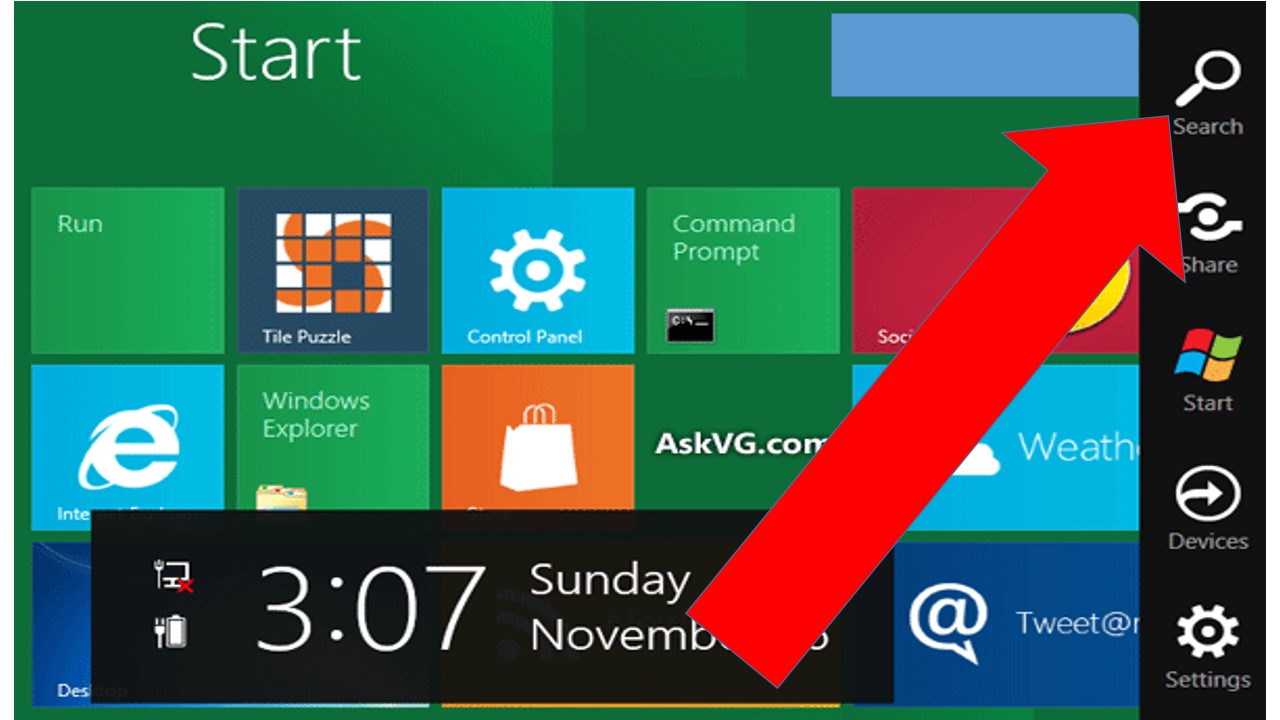
  • Go to your Windows 8 Sidebar on the right and click the “Search Button.”  It looks like a magnifying glass.

Sidebar


Cool Google Chrome Change

23 Jan

Great news for Laurence the Laptop!

He might actually survive his stint as the lifeline for a professional writer/researcher/teacher. 😛

If you are anything like me, you threaten the poor darling’s life at least three times on any given day thanks to random unidentifiable voices streaming from the speakers.  I mean seriously, how can 4 ads be running just slighting off so that they scream over each other and I be unable to locate even one to shut the stupid thing off?  It drives me nuts!  I usually just throw a temper tantrum, shut down all the tab, lose all of my research, and let Laurence have it for being such a stupid nitwit.  

Fortunately, Google Chrome has come through finally!  At long last they have added a way for you to tell which tabs have sounds playing.  Check out the new little volume symbol on your tab at the top of the browser.

 If you see it, then that means that something is playing sounds on that tab.  The same is true regardless of whether it’s music, videos, random beeping noises, or advertisements–if it has some noise going on the symbol shows up.


Untitled picture

All the other browsers should adopt this change; it’s a keeper.  

Deactiviting Your Facebook Account

16 Jan

I’ve been asked to do a follow up on my “Deactivating Your Pinterest Account” post with a How-to Shut Down your Facebook Account Post. Shutting down your account completely is impossible; if you’ve opened an account it’s there to stay. Facebook itself warns that after shutting down your account, “your friends can still invite you to events, tag you in photos, or ask you to join groups”

You can still”De-activate” your account if you want. This means that while your account name is still out there, your account no longer shows up.  It won’t show up in search engines, and no one can access your profile anymore–it’s like you were never there.  Of course the files are still on Facebook’s mainframe, but at least usually no one you know can get ahold of it (unless you know a hacker or the government, then it’s all up to a miracle).  

Voila!: How to Deactivate Facebook

(With Helpful Pics)-Click images for enlargement

This may work for you and take you to the “Account Settings” page automatically: Account Settings. If so, skip steps 1-3.

1. Sign in to Facebook.

2. Look in the Top Right Corner of your screen to the blue bar at the top. Do you see the gear symbol? Click It.

Facebook 1


3. Now You’ll have a list of options; click “Account Settings.” 

Facebook


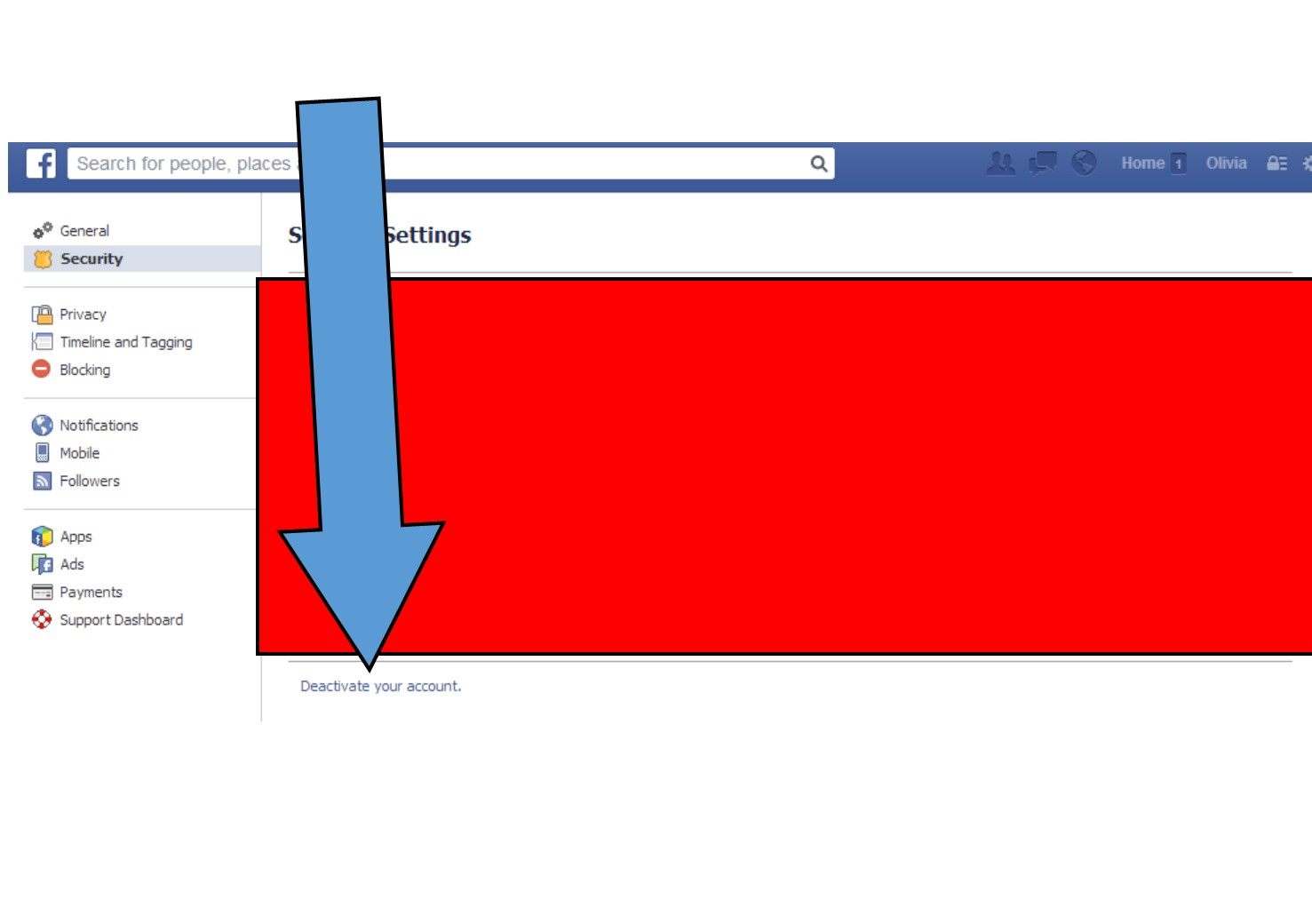
4. Look at the top of the menu on your Left-hand. You are currently on General, but you need to choose “Security.”

facebook


5. At the very bottom of the list of Security Settings is a new link “Deactivate Your Account.” Click It.

Facebook


It’s going to ask you for your reasons for leaving, and it will offer a few warnings. The most significant of which being that if you de-activate your account, you will not automatically be re-added as an admin to groups or pages if you re-join later. If you accept all the risks, just hit “Confirm.”  You are officially no longer on Facebook!


Please note that if you de-activate your account but want to re-join later, all you have to do is re-sign in with your old username and password.  It’ll ask you a few questions, but your account will come back. This is why a lot of people disappear around finals-time but show up again later. 🙂