
Problem #1 in “The Blonde Life” ~ Especially for women:
The fact that Computer technicians immediately ignore everything you could possibly tell them.

Problem #1 in “The Blonde Life” ~ Especially for women:
He might actually survive his stint as the lifeline for a professional writer/researcher/teacher. 😛
If you are anything like me, you threaten the poor darling’s life at least three times on any given day thanks to random unidentifiable voices streaming from the speakers. I mean seriously, how can 4 ads be running just slighting off so that they scream over each other and I be unable to locate even one to shut the stupid thing off? It drives me nuts! I usually just throw a temper tantrum, shut down all the tab, lose all of my research, and let Laurence have it for being such a stupid nitwit.
Fortunately, Google Chrome has come through finally! At long last they have added a way for you to tell which tabs have sounds playing. Check out the new little volume symbol on your tab at the top of the browser.

If you see it, then that means that something is playing sounds on that tab. The same is true regardless of whether it’s music, videos, random beeping noises, or advertisements–if it has some noise going on the symbol shows up.

All the other browsers should adopt this change; it’s a keeper.

I ran into this problem today, so I figured I would share the information with you 🙂
If you need to find the wireless password and you don’t have access to the Router (I.e. you are at an extended family’s house like me :P) Here is how you go about locating that.
Worked for me; hope it helps you!!

I’ve run into this problem several times with photographers (particularly amateur with the little cameras), although I’m sure other people have had the same problem. You plug in your SD Memory Card and it says something like “Memory Card Locked” or “Memory Card Unavailable.” Don’t freak–your card isn’t necessarily unrecoverable!
If you look at the picture of the card above, note the notch on the left side. If you look carefully, you’ll see a part that’s a light grey. You can see it more clearly in this picture.
What you may not know is that this is a little button–it slides up and down. And it is what locks up a memory card. Basically it’s a key that protects your information from being hurt, so it locks the information down. You cannot access it, and you cannot change it. Unfortunately, this is going to bring up error messages when you plug the card in. This is especially an issue for photographers who frequently pull the cards in and out of the camera. A lot of times, you’ll accidentally trigger this little button without realizing
All You Have To Do Is Re-Click The Button.
That’s it. Real Simple, no hassle, no computer-wizards necessary. 🙂
Pinterest is currently changing over to a new interface, and, while there aren’t any too serious changes, some things are slightly different. I’ve been playing around with the new format and thought I’d run over some of the changes here. So here are a few notations on the changes to your account home page and directions on adding or altering boards and pins.
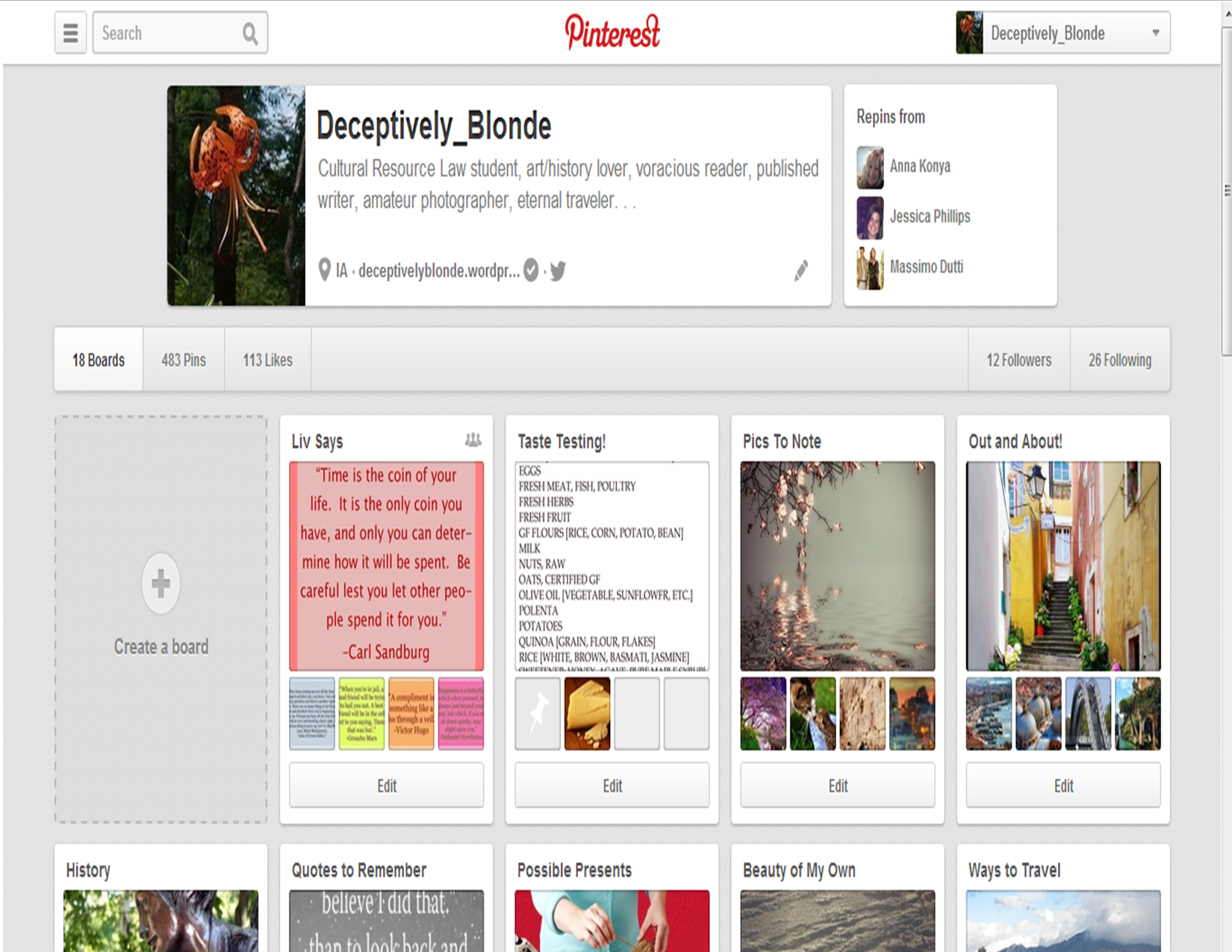
Pinterest Account Home Page = new format
If you look carefully, you will note that all the buttons on the top menu are now combined into one new drop-down menu in the upper right-hand corner. Continue reading
Apparently, I am computer ignorant. Or so I discovered today when I found out that I have been missing the amazing Google tricks! If you are randomly bored or professionally procrastinating, take 5 seconds and try this out.
Okay, okay, one more.
Neat huh?!?

“She was free in her wildness. She was a wanderess, a drop of free water. She belonged to no man and to no city” ~ Roman Payne



Language Translation






 Deceptively Blonde